
Mic Facing
Turn your iPhone into a portable voice studio — amplify, record, transcribe, and translate, all on-device.
Download on the App StoreLive Amplification
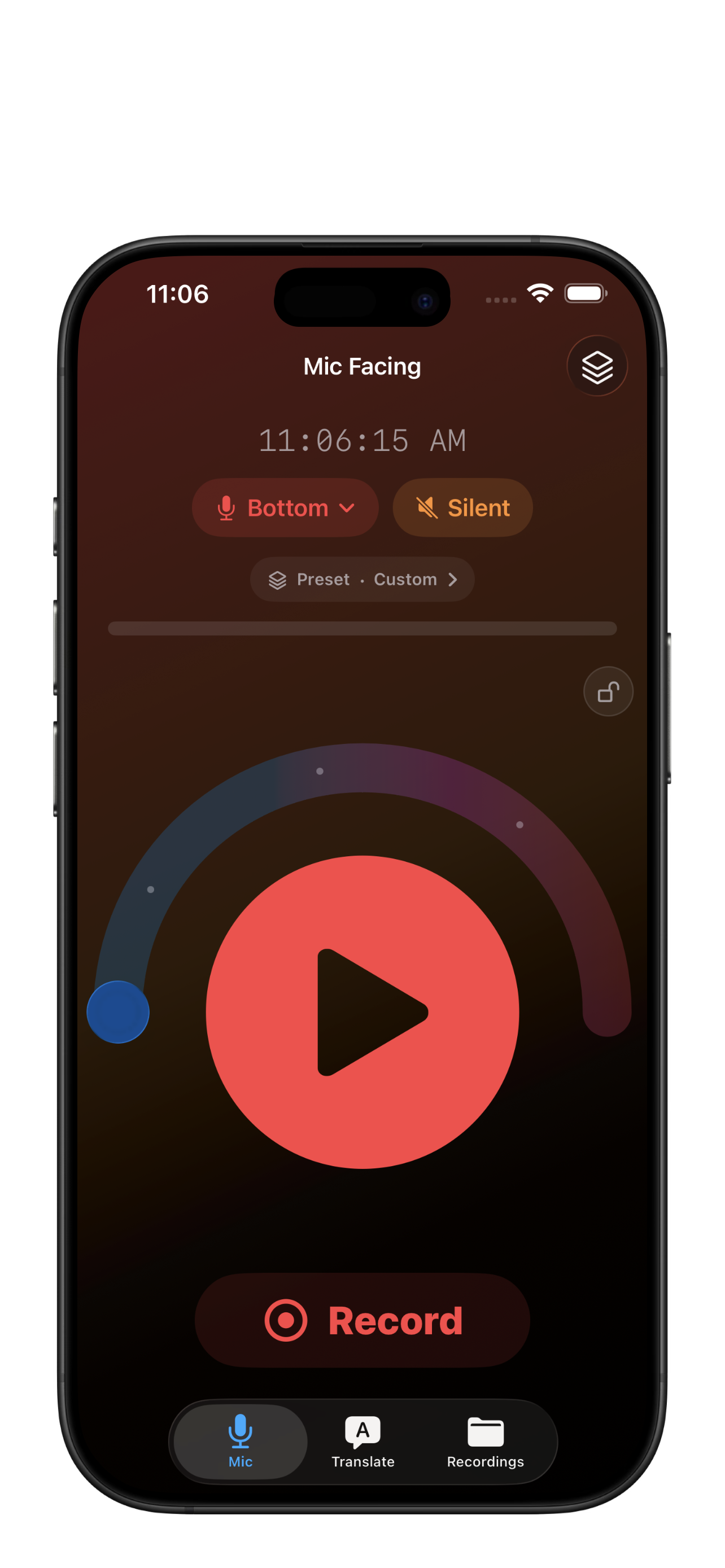
Mic Facing turns your iPhone into a portable voice studio that shapes your voice in real time.
Pick from 12 built-in presets — Clean Voice, Hearing Assist, Podcast, Lecture Hall, and more — or save your own custom presets.
A half-circle gain slider with haptic detents at 2.5×, 5×, 7.5×, and 10× lets you dial in the exact level by feel.
Built-in EQ, compressor, and noise gate give you studio-grade control without the studio.
Smart room detection listens to your environment and suggests a preset that fits — Quiet, Normal, Noisy, or Loud.
Recording with iCloud Sync
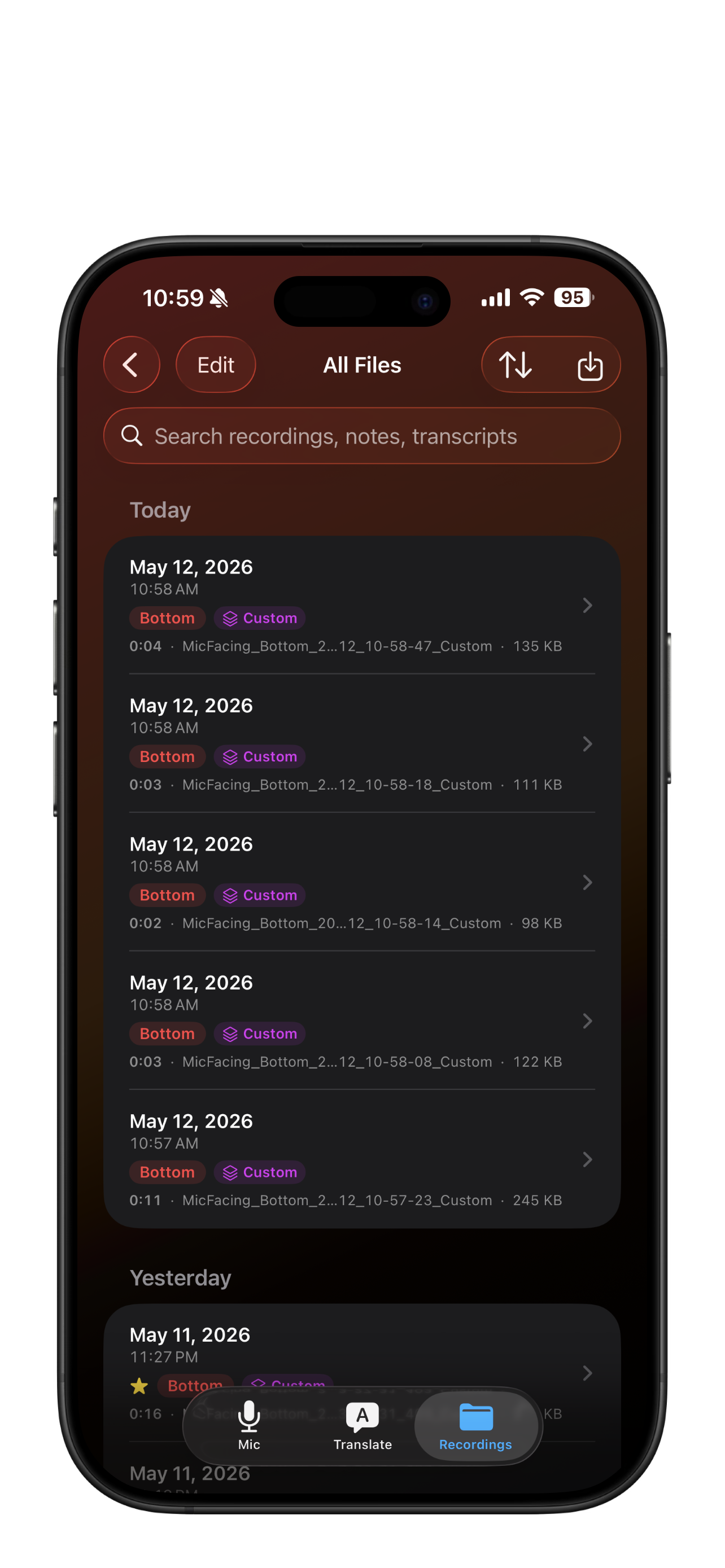
Tap Record and capture a clean take. Audio is captured independently of the live monitor, so route changes and interruptions never truncate the file.
Recordings sync to iCloud Drive automatically, so they're available on every device.
Files are stored as plain audio in regular folders — not a proprietary database — so your data stays portable.
Multiple recording formats supported, including M4A, WAV, AIFF, and CAF.
Trim recordings to clips, organize them into folders, and add per-recording notes for context.
Transcription & AI Summaries
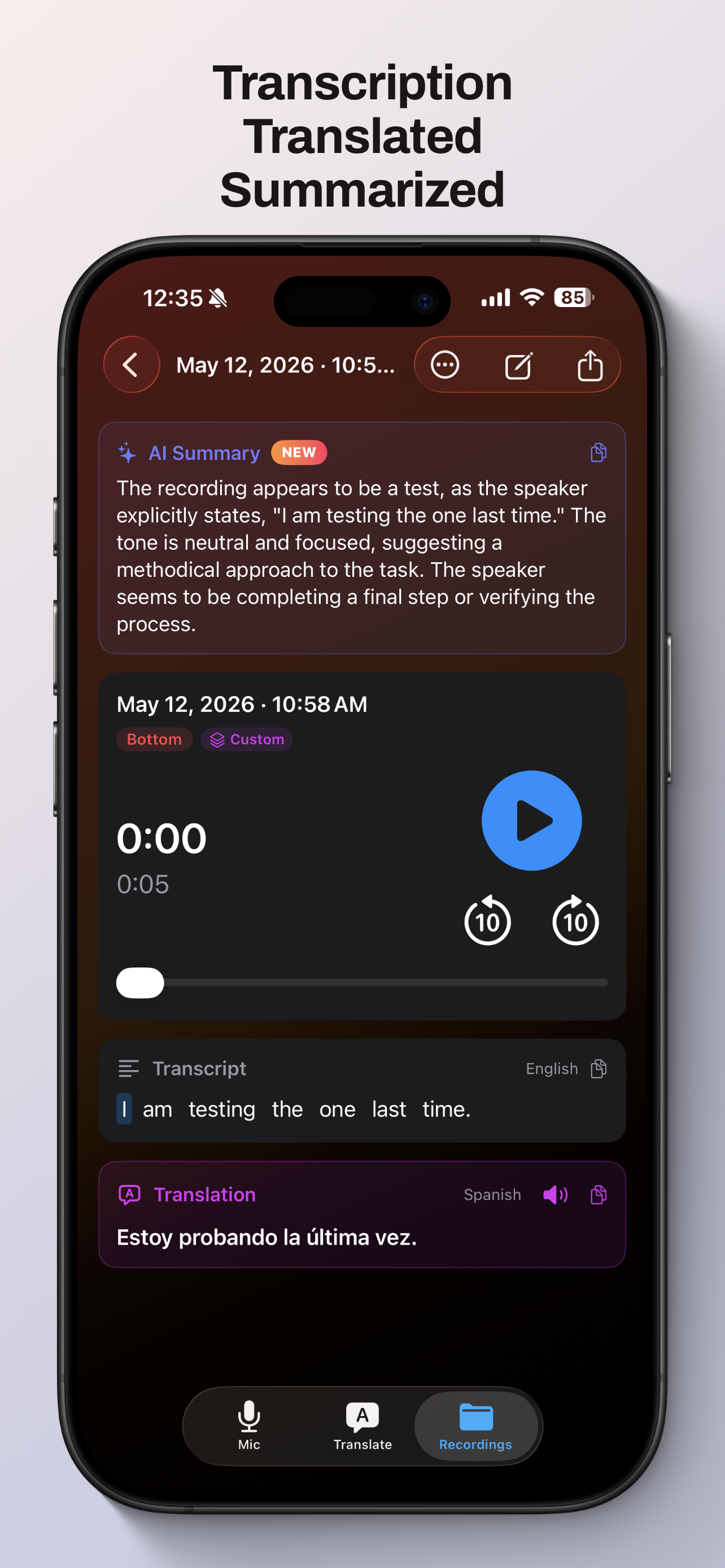
Auto-transcribe runs after each recording (toggle in settings) using Apple's on-device Speech framework.
Twelve languages supported, including English, Spanish, French, German, Italian, Portuguese, Japanese, Korean, Chinese, Arabic, Hindi, and Russian.
Tap a word in the transcript to seek to that moment in the recording.
AI summaries are generated by Apple's on-device Foundation Models — they never leave your iPhone.
Full-text search across notes, transcripts, summaries, and translations.
Live Translation
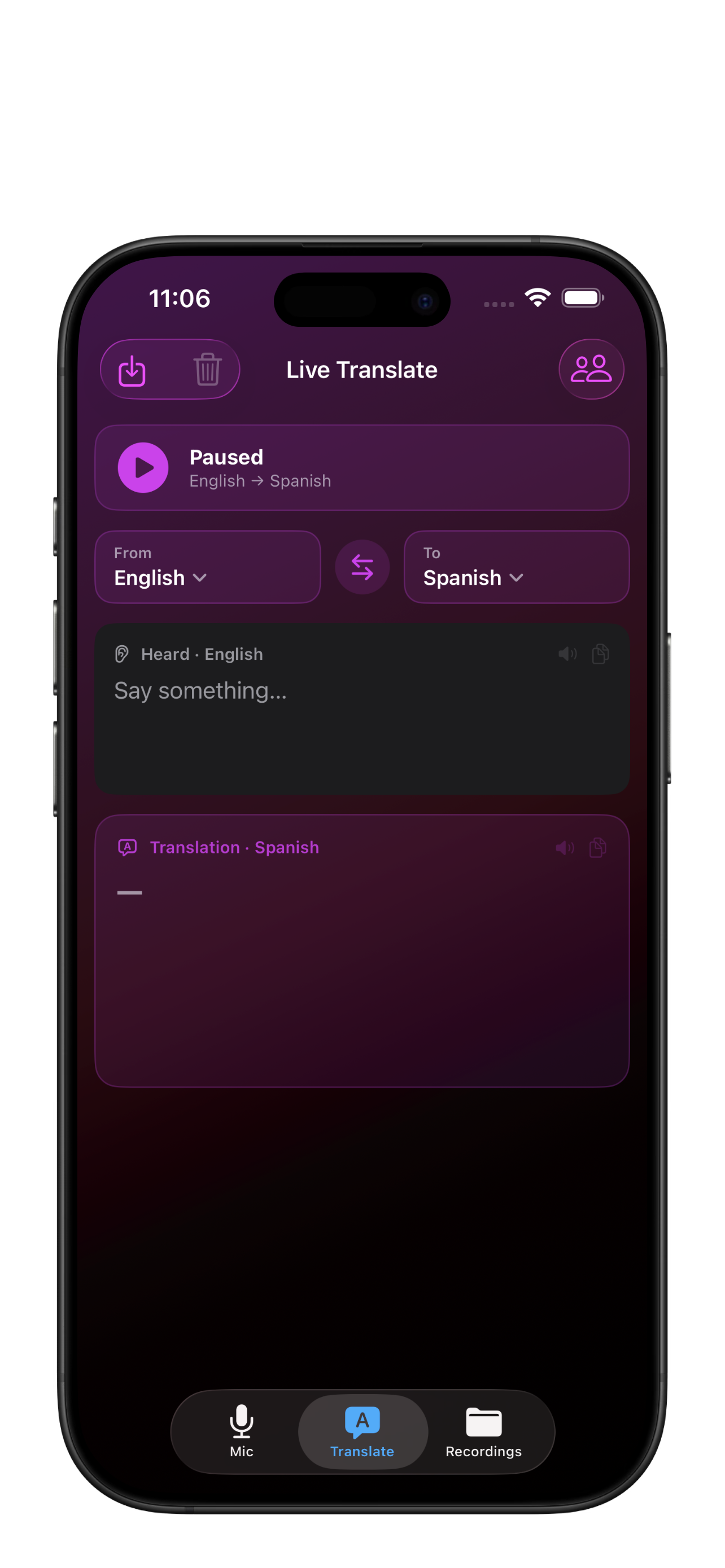
Speak into the mic and see your words translated in real time using Apple's on-device Translation framework.
Twelve languages supported, with translation running fully offline once the language models are downloaded once via iOS Settings.
No translation servers, no accounts — just your iPhone.
Conversation Mode
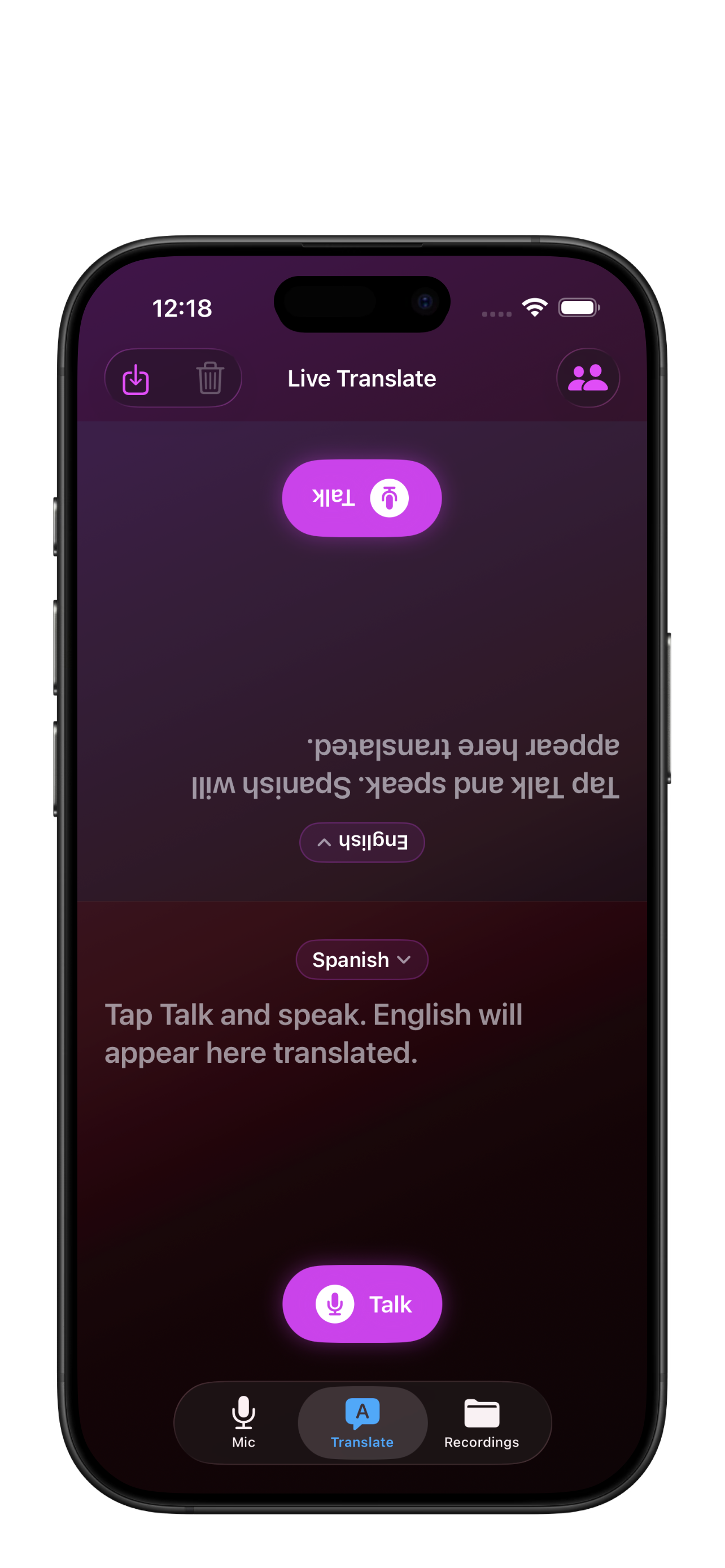
Two people, two languages, one screen.
Conversation mode flips half of the screen so you and someone facing you can each tap to talk and read each other's translation in their own language.
Switch between any of the twelve supported languages on the fly.
Like everything else in Mic Facing, conversation mode runs entirely on-device.
External Mic Support
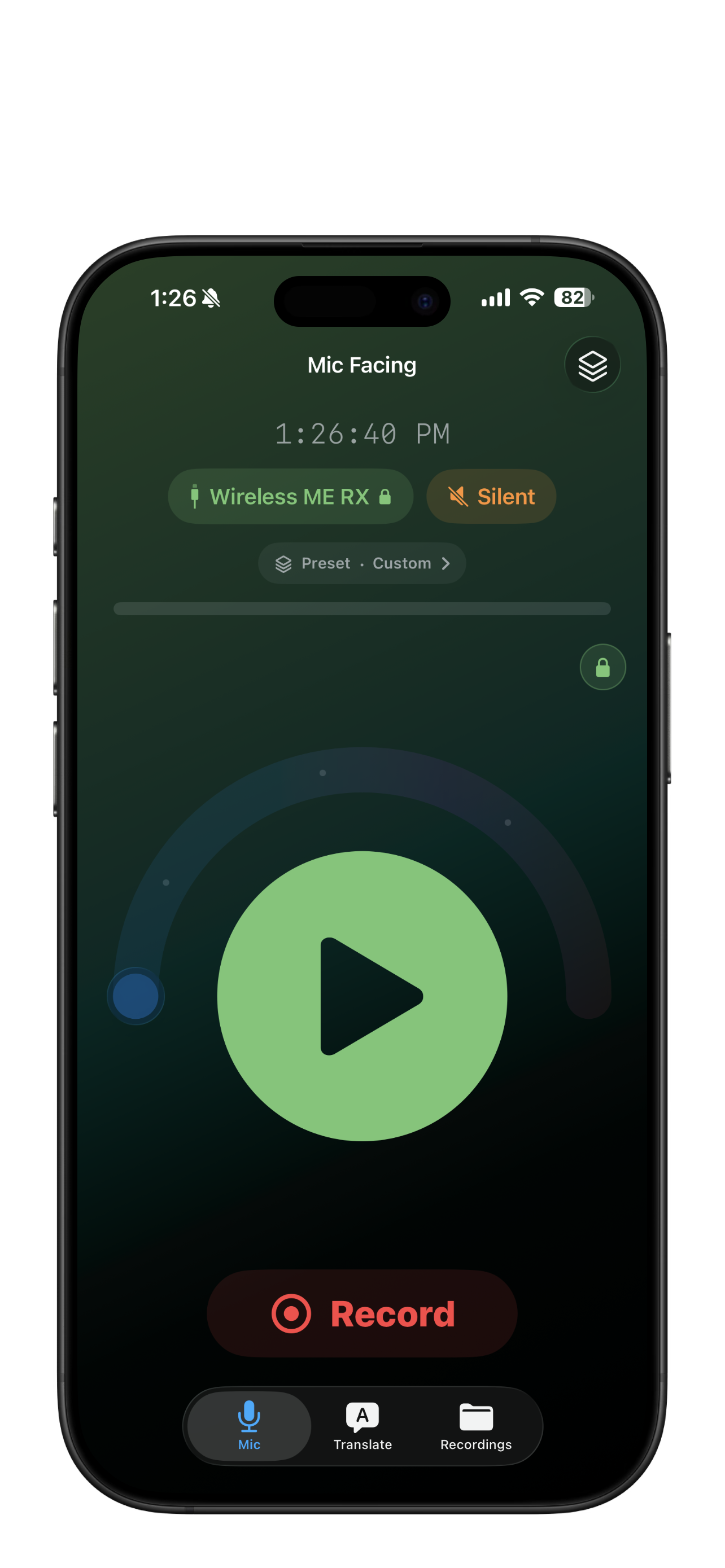
Plug in a USB-C mic (such as a Rode or FiFine) and Mic Facing routes input through it automatically.
The whole UI tints green for clear visual confirmation that your external mic is in charge.
Plug-and-play — no setup or pairing required.
Audio import also supported from Files, AirDrop, or directly from external storage.
Privacy Policy
Mic Facing and its developer take your privacy very seriously. There are no accounts, no analytics, no third-party SDKs, and no servers — Mic Facing has no backend, so there is nowhere for your data to be sent.
Microphone audio is captured locally on your iPhone for live amplification and recording. It is never transmitted off the device by Mic Facing.
Speech recognition uses Apple's Speech framework with on-device transcription where supported, so audio does not leave your device. The resulting transcript is saved to the recording's folder on your device (and to iCloud Drive, if enabled).
Translation uses Apple's Translation framework and is performed on-device using language models you may need to download once via iOS Settings. Mic Facing has no access to translation servers.
AI summaries use Apple's on-device Foundation Models. The transcript is processed locally on your iPhone and nothing is sent to a remote AI service.
If you have iCloud Drive enabled in iOS Settings, recordings are stored in your private app container in iCloud Drive. iOS itself handles sync between your devices — Mic Facing has no servers in this loop and no access to the contents of your iCloud Drive.
Permission for Mic Facing to access the microphone or speech recognition can be revoked at any time in the iOS Settings app (Settings > Privacy & Security > Microphone / Speech Recognition).